前言 学习Android的三种动画
View Animation(视图动画)
Drawable Animation(帧动画)
Property Animation(属性动画)
第三方动画库
正文 1.View Animation(视图动画Tween Animation) 1.1 View动画的概述及种类
视图动画可以通过XML或通过代码动态创建,对于视图动画建议使用XML文件定义,因为它具有更高的可读性,可重用性。
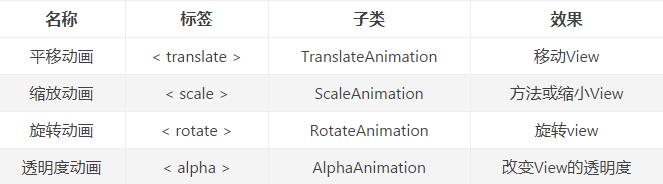
View动画的四种效果:
平移动画(TranslateAnimation)
缩放动画(ScaleAnimation)
旋转动画(RotateAnimation)
透明度动画(AlphaAnimation)
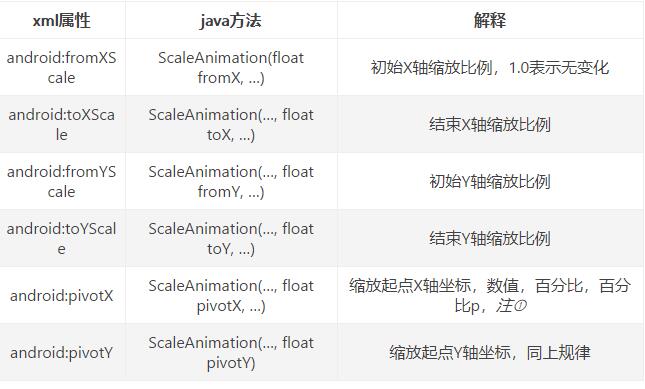
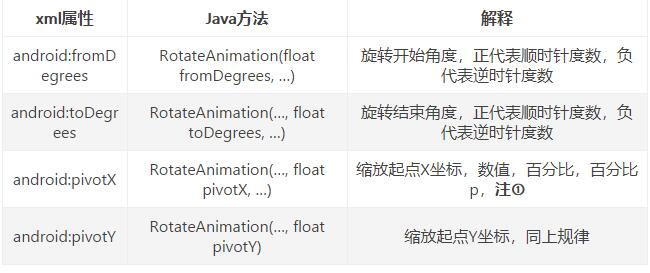
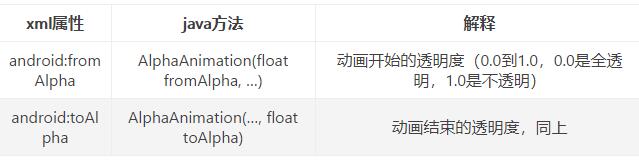
view动画的四种变换通过表格系统的了解一下:
要使用View动画,首先要创建XML文件,我们需要在res下新建anim文件夹,接着在anim下创建animation resource file的xml文件,我们举例为view_anim.xml
通过xml文件来了解它们各自的语法:
1
2
3
4
5
6
7
8
9
10
11
12
13
14
15
16
17
18
19
20
21
22
23
24
25
26
27
28
29
30
31
32
<?xml version="1.0" encoding="utf-8"?> <set xmlns:android="http://schemas.android.com/apk/res/android"> <!--平移动画标签--> <translate android:fromXDelta="0%p" android:toXDelta="20%p" android:fromYDelta="0%p" android:toYDelta="20%p" android:duration="4000"/> <!--缩放动画标签--> <scale android:fromXScale="1.0" android:toXScale="0.2" android:fromYScale="1.0" android:toYScale="0.2" android:pivotX="50%" android:pivotY="50%" android:duration="4000"/> <!--旋转动画标签--> <rotate android:fromDegrees="0" android:toDegrees="360" android:pivotX="50%" android:pivotY="50%" android:duration="4000"/> <!--透明度动画标签--> <alpha android:fromAlpha="1.0" android:toAlpha="0.2" android:duration="4000"/> </set>
View动画既可以是单个动画,也可以有一系列动画组成。,它是一个容器,可以包含若干个动画,并且内部也可以继续嵌套集合的。
1
2
3
4
5
6
7
8
9
10
11
12
13
14
15
16
17
18
19
20
21
22
23
24
25
/** * @author power * @date 2018-08-08 20:28:58 * @description: MainActivity */ public class MainActivity extends AppCompatActivity { private TextView textView; @Override protected void onCreate(Bundle savedInstanceState) { super.onCreate(savedInstanceState); setContentView(R.layout.activity_main); textView = findViewById(R.id.textview); textView.setOnClickListener(new View.OnClickListener() { @Override public void onClick(View v) { Animation animation = AnimationUtils.loadAnimation(MainActivity.this,R.anim.viewanimation); textView.startAnimation(animation); } }); } }


动画集合的运行效果:
1.2 View动画的属性详解
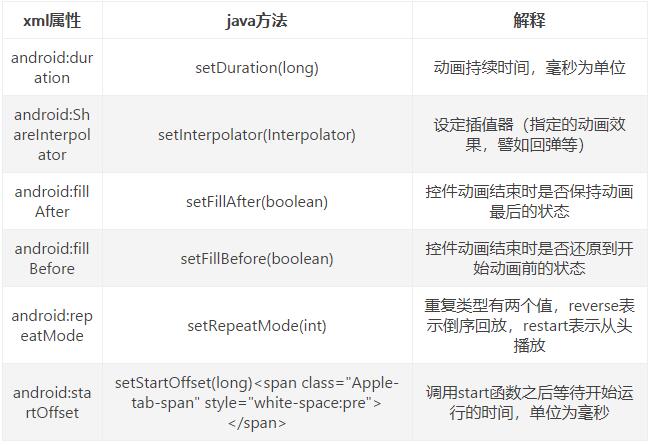
Animation属性详解:
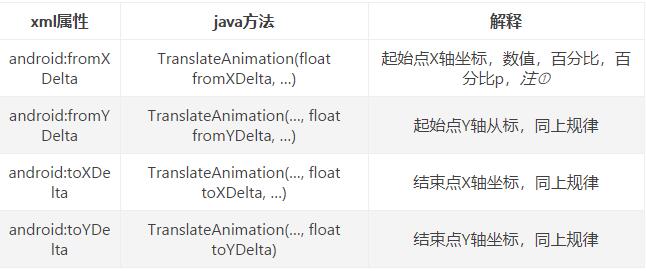
TranslateAnimation属性详解:
注①:数值、百分数、百分数p,譬如50表示以当前View左上角坐标加50px为初始点、50%表示以当前View的左上角加上当前View宽高的50%做为初始点、50%p表示以当前View的左上角加上父控件宽高的50%做为初始点
ScaleAnimation属性详解:
RotateAnimation属性详解:
AlphaAnimation属性详解:
AnimationSet属性详解:
1.3 View动画的使用方法及注意事项
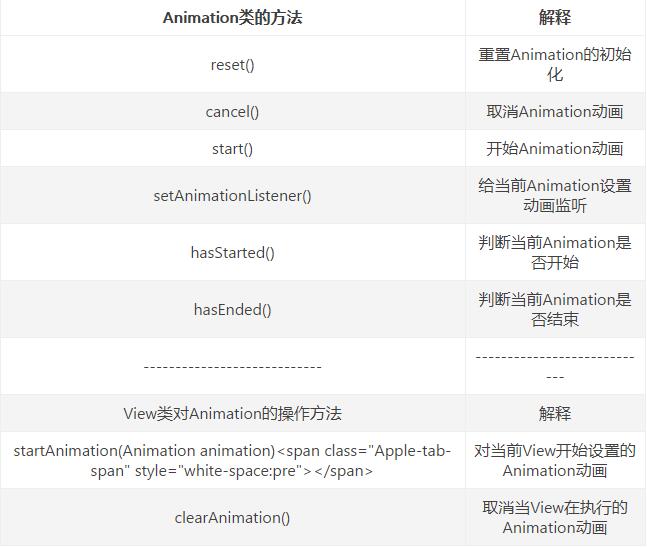
上述的使用方法已经非常详细了,也并没有什么难以理解的地方,我们只需要创建相应的xml文件,然后在activity里startAnimation就可以完成动画了。当然了,Animation类和View操作Animation还有一些如下的实用方法:
1
2
特别特别注意:补间动画执行之后并未改变View的真实布局属性值。切记这一点,譬如我们在Activity中有一个 Button在屏幕上方,我们设置了平移动画移动到屏幕下方然后保持动画最后执行状态呆在屏幕下方,这时如果点击屏幕下方动画执行之后的Button是没 有任何反应的,而点击原来屏幕上方没有Button的地方却响应的是点击Button的事件。 在进行动画的时候,尽量使用dp,因为px会导致适配问题。
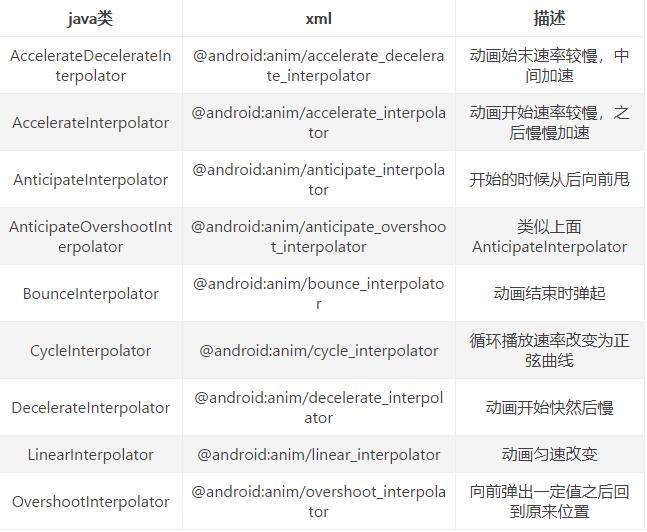
1.4 View动画Interpolator插值器详解
看一下源码的解释:
1 注释说明:插值器定义了动画的变化,使一些基础的动画如(平移,缩放,旋转,透明)可以被加速,减速,重复等
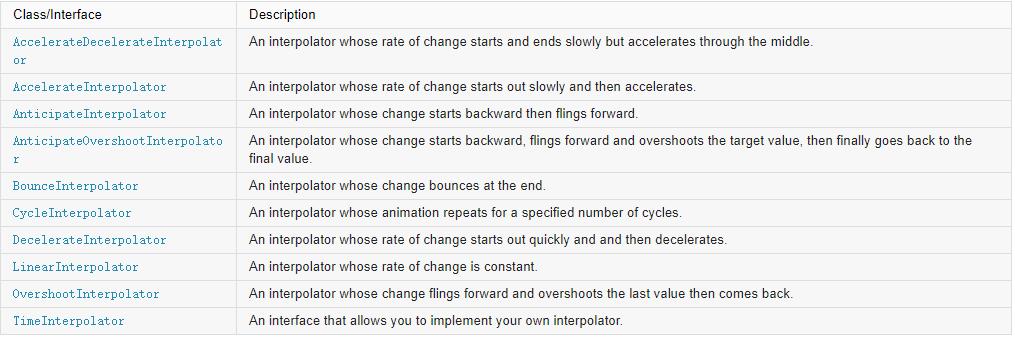
通过上图可以看见其实系统提供给我们的各类型插值器都是实现了Interpolator接口,具体如下:
插值器的使用比较简答,如下:
1
2
3
4
5
6
7
8
9
10
11
12
13
<set xmlns:android="http://schemas.android.com/apk/res/android" <!--运动结束时弹起--> android:interpolator="@android:anim/bounce_interpolator"> <!--平移动画标签--> <translate android:fromXDelta="0%p" android:toXDelta="20%p" android:fromYDelta="0%p" android:toYDelta="20%p" android:duration="4000"/> <!--缩放动画标签--> </set>
设置插值器后的效果:
在anim文件下创建xml文件
1
2
3
4
5
<?xml version="1.0" encoding="utf-8"?> <accelerateInterpolator xmlns:android="http://schemas.android.com/apk/res/android" android:factor="0.8"> </accelerateInterpolator>
通过代码我们发现,这种方式只能修改现有插值器的一些属性,但有些插值器不具备修改属性,那么我们就通过java代码实现进一步需求
通过上面的学习我们知道,所有的插值器都是继承自Interpolator接口,它则继承TimeInterpolator接口,而这个接口定义了float getInterpolation(float input);方法
1
2
3
4
5
6
7
public class AccelerateDecelerateInterpolator extends BaseInterpolator implements NativeInterpolatorFactory { public float getInterpolation(float input) { return (float)(Math.cos((input + 1) * Math.PI) / 2.0f) + 0.5f; } }
1
2
3
4
5
6
7
8
9
10
11
12
13
14
15
16
public interface TimeInterpolator { /** * Maps a value representing the elapsed fraction of an animation to a value that represents * the interpolated fraction. This interpolated value is then multiplied by the change in * value of an animation to derive the animated value at the current elapsed animation time. * * @param input A value between 0 and 1.0 indicating our current point * in the animation where 0 represents the start and 1.0 represents * the end * @return The interpolation value. This value can be more than 1.0 for * interpolators which overshoot their targets, or less than 0 for * interpolators that undershoot their targets. */ float getInterpolation(float input); }
我们需要继承Interpolator接口并实现getInterpolation();,在方法里处理业务逻辑即可。
2.Drawable Animation(帧动画Frame Animation) 2.1帧动画概述
帧动画是顺序播放一组预先定义好的图片,不同于View动画,系统提供了另外一个类AnimationDrawable来使用帧动画。
2.2帧动画的使用
首先我们找一组帧动画的图片放入drawable-xhdpi文件夹下,其次在drawable文件夹下创建xml文件,如下所示:
1
2
3
4
5
6
7
8
9
<?xml version="1.0" encoding="utf-8"?> <animation-list xmlns:android="http://schemas.android.com/apk/res/android" android:oneshot="false"> <item android:drawable="@drawable/refresh1" android:duration="180"/> <item android:drawable="@drawable/refresh2" android:duration="180"/> ... <item android:drawable="@drawable/refresh25" android:duration="180"/> </animation-list>
1
2
3
4
5
6
7
8
9
view = findViewById(R.id.view); view.setBackgroundResource(R.drawable.drawable_anim); view.setOnClickListener(new View.OnClickListener() { @Override public void onClick(View v) { AnimationDrawable animationDrawable = (AnimationDrawable) view.getBackground(); animationDrawable.start(); } });
帧动画效果图:
- **元素,属性有:
android:oneshot true 代表只执行一次,false 循环执行。
- animation-list
android:drawable 一个frame的Drawable资源。android:duration 一个frame显示多长时间。
帧动画很简单,但容易引起OOM,我在这里也就不多赘述。
3.Property Animation(属性动画)
通俗的说,属性动画就是在一定的时间内,按照一定的规律来改变对象的属性(该属性对于该对象应该是从形态(大小,位置等)上可以感受到的),从而是对象展现出动画的效果。如果要实现既要有动画效果又要使得View本身得到真正改变,那就要借助属性动画了,这也是属性动画引入的原因。它能够更加灵活的实现各种效果,不仅限于类似补间动画实现的哪几种效果。
3.2作用:
允许定义的属性(The property animation system lets you define the following characteristics of an animation:)
先来看一个例子:
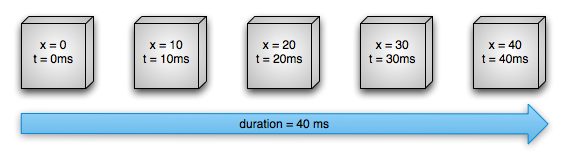
首先假设一个对象在屏幕的水平方向上移动,设定它的持续时间为40ms,位移是40像素长度。每10ms(属性动画默认的每帧的刷新率),它的移动距离是10像素长度。最后,在40ms的时候,这个动画结束了,而该对象停留在水平40像素的位置上(相对出发位置),这是一个使用线性插值器(linear interpolation)的例子。
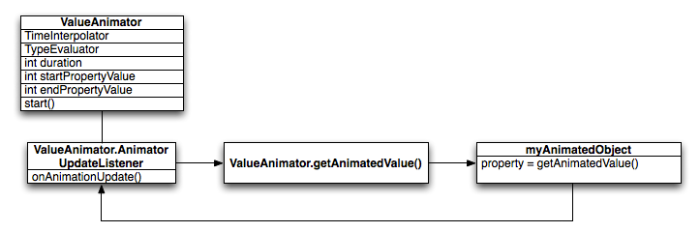
先来看一下,这过程中主要的类之间是如何计算和工作的。
ValueAnimator : 用来跟踪动画的时机(The ValueAnimator object keeps track of your animation’s timing, such as how long the animation has been running, and the current value of the property that it is animating.)
TimeInterpolation : 定义了时间插值器,根据特定的值(与动画刷新频率有关)计算出当前属性值改变的百分比(An interpolator define how specific values in an animation are calculated as a function of time.)
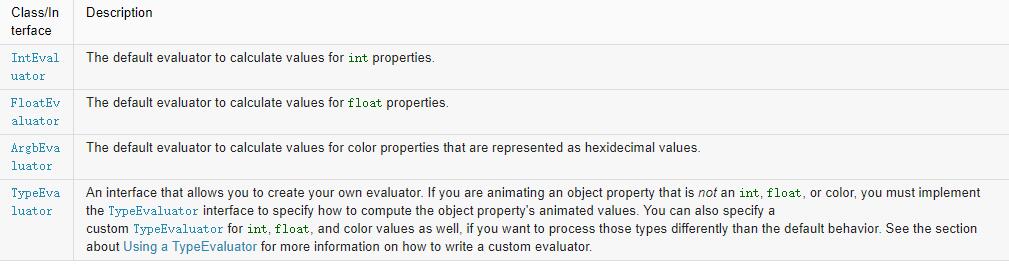
TimeEvaluate: 类型估值算法,它的作用是定义了如何根据当前属性改变的百分比来计算改变后的属性值(defines how to calculate values for the property being animated)
为了开启一个动画,首先新建一个ValueAnimator 实例并在构造的时候给它提供动画对象的属性的开始值(starting) 和 结束值(ending)的两个值和持续时间。从你调用start()方法开始,在整个动画过程,ValueAnimator 计算 了一个基于动画持续时间和动画流逝的时间的百分值(0到1之间)。这个百分值代表着动画完成的百分比,我们叫它为流逝百分比(流逝时间/总的持续时间)。在刚刚的例子中,显而易见地,在时间t=10ms的时候,流逝百分值应该是0.25(10/40)。
当 ValueAnimator 计算完该百分比之后,就会提醒 TimeInterpolator去计算当前属性改变的百分比。属性改变的百分比是一个该时刻对应的属性的值与结束值的百分比(对应上例中就是 (某时刻X的值)/40 ),它是一个与流逝百分比相匹配的值。在上述例子中:插入百分比总是与流逝百分比一样,在t=10ms的时候,流逝百分比是0.25(10/40),插入百分比也是0.25(10/40)。
当插入百分比计算完了之后,ValueAnimator会适当地调用TypeEvaluator基于插入百分比去计算需要改变的属性当前的具体值。对与上例在t=10ms时刻,该值是 0.25*(40-0)=10像素。
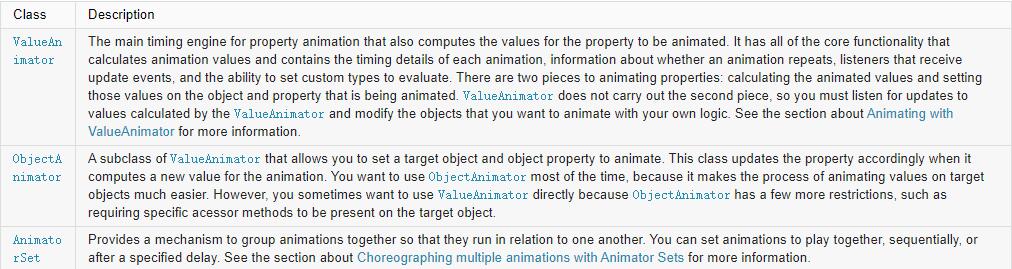
Animatiors
Evaluator
Interpolator
可以看到,我们可以使用的动画类有ValueAnimator,ObjectAnimator,AnimatorSet。
其中ObjectAnimator是ValueAnimator的子类,可以更简单的改变对象的属性来展示动画,不过也有自己的局限性(需要改变的对象的属性,该属性必须最小有一个setter方法)
下面我们用AnimatorSet和ObjectAnimator来做出文章开始之前的效果。
首先对于每个菜单的选项,我们需要做一个自定义view,这是一个普通的组合控件.
自定义View的代码也比较简单:
1
2
3
4
5
6
7
8
9
10
11
12
13
14
15
16
17
18
19
20
21
22
23
24
25
public class EnvrnoteItemView extends LinearLayout { private TextView mTextIViewLebal; private ImageView mImageView; private Context mContext; public EnvrnoteItemView(Context context) { super(context); } public EnvrnoteItemView(Context context, AttributeSet attrs) { super(context, attrs); LayoutInflater.from(context).inflate(R.layout.envrnote_item, this,true); mContext=context; mTextIViewLebal=(TextView) findViewById(R.id.item_lebal_id); mImageView=(ImageView) findViewById(R.id.item_image_id); } public void setLebalText(String text){ mTextIViewLebal.setText(text); invalidate(); } public void setImage(int resId){ mImageView.setImageBitmap(BitmapFactory.decodeResource(mContext.getResources(), resId)); invalidate(); } }
剩下的就是动画的展示了:
1
2
3
4
5
6
7
8
9
10
11
12
13
14
15
16
17
18
19
20
21
22
23
24
25
26
27
28
29
30
31
32
33
34
35
36
37
38
39
40
41
42
43
44
45
46
47
48
49
50
51
52
53
54
55
56
57
58
59
60
61
62
63
64
65
66
67
68
69
70
71
72
73
74
75
76
77
78
79
80
81
82
83
84
85
86
87
88
89
90
91
92
93
94
95
96
97
98
99
100
101
102
103
104
105
106
107
108
109
110
111
112
113
114
115
116
117
118
119
120
121
122
123
124
125
126
127
128
129
130
131
132
133
134
135
136
137
138
139
140
141
142
143
144
145
146
147
148
149
150
151
152
153
154
155
156
157
public class FragmentEnvrnote extends Fragment implements OnClickListener { private final int DIS = 10; private ImageView mItemCompose; private EnvrnoteItemView mItemAttachment; private EnvrnoteItemView mItemAudio; private EnvrnoteItemView mItemCamera; private EnvrnoteItemView mItemHandwriting; private EnvrnoteItemView mItemLock; private EnvrnoteItemView mItemText; private boolean isOpened; private ObjectAnimator mMainAnimator; private AnimatorSet mAnimatorSet; @Override public View onCreateView(LayoutInflater inflater, ViewGroup container, Bundle savedInstanceState) { // TODO Auto-generated method stub isOpened=false; View view = inflater.inflate(R.layout.fragment_envrnote, null); mItemCompose = (ImageView) view.findViewById(R.id.envrnote_compose_id); mItemCompose.setOnClickListener(this); mItemAttachment = (EnvrnoteItemView) view .findViewById(R.id.envrnote_attachment_id); mItemAttachment .setLebalText(getString(R.string.envrnote_attachment_str)); mItemAttachment.setImage(R.drawable.ic_attachment); mItemAttachment.setOnClickListener(this); mItemAudio = (EnvrnoteItemView) view .findViewById(R.id.envrnote_audio_id); mItemAudio.setLebalText(getString(R.string.envrnote_audio_str)); mItemAudio.setImage(R.drawable.ic_audio); mItemAudio.setOnClickListener(this); mItemCamera = (EnvrnoteItemView) view .findViewById(R.id.envrnote_camera_id); mItemCamera.setLebalText(getString(R.string.envrnote_camera_str)); mItemCamera.setImage(R.drawable.ic_camera); mItemCamera.setOnClickListener(this); mItemHandwriting = (EnvrnoteItemView) view .findViewById(R.id.envrnote_handwriting_id); mItemHandwriting .setLebalText(getString(R.string.envrnote_handwritting_str)); mItemHandwriting.setImage(R.drawable.ic_handwriting); mItemHandwriting.setOnClickListener(this); mItemLock = (EnvrnoteItemView) view.findViewById(R.id.envrnote_lock_id); mItemLock.setLebalText(getString(R.string.envrnote_lock_str)); mItemLock.setImage(R.drawable.ic_lock); mItemLock.setOnClickListener(this); mItemText = (EnvrnoteItemView) view.findViewById(R.id.envrnote_text_id); mItemText.setLebalText(getString(R.string.envrnote_text_str)); mItemText.setImage(R.drawable.ic_text); mItemText.setOnClickListener(this); return view; } @Override public void onClick(View v) { if (v == mItemCompose) { if (!isOpened) { openMenu(); isOpened = true; } else { closeMenu(); isOpened = false; } } else{ if (!isOpened) { openMenu(); isOpened = true; } else { closeMenu(); isOpened = false; } } } private void openMenu() { showItem(mItemAttachment, 0, 6); showItem(mItemAudio, 1, 6); showItem(mItemCamera, 2, 6); showItem(mItemHandwriting, 3, 6); showItem(mItemLock, 4, 6); showItem(mItemText, 5, 6); } private void closeMenu() { closeItem(mItemAttachment, 0, 6); closeItem(mItemAudio, 1, 6); closeItem(mItemCamera, 2, 6); closeItem(mItemHandwriting, 3, 6); closeItem(mItemLock, 4, 6); closeItem(mItemText, 5, 6); } private void showItem(final View view, int index, int total) { if(view.getVisibility()!= View.VISIBLE){ view.setVisibility(View.VISIBLE); } int baseDistance=mItemCompose.getHeight()+DIS; float baseY=mItemCompose.getTranslationY(); mAnimatorSet =new AnimatorSet(); mAnimatorSet.playTogether( ObjectAnimator.ofFloat(view, "translationY", baseY-((index+1)*baseDistance)), ObjectAnimator.ofFloat(view, "scaleX", 0f, 1.0f), ObjectAnimator.ofFloat(view, "scaleY", 0f, 1.0f), ObjectAnimator.ofFloat(view, "alpha", 0f, 1.0f)); mAnimatorSet.setDuration(100); mAnimatorSet.start(); } private void closeItem(final View view, int index, int total) { if (view.getVisibility() != View.VISIBLE) { view.setVisibility(View.VISIBLE); } mAnimatorSet =new AnimatorSet(); mAnimatorSet.playTogether( ObjectAnimator.ofFloat(view, "translationY",mItemCompose.getTranslationY()), ObjectAnimator.ofFloat(view, "scaleX", 1.0f, 0f), ObjectAnimator.ofFloat(view, "scaleY", 1.0f, 0f), ObjectAnimator.ofFloat(view, "alpha", 1.0f, 0f)); mAnimatorSet.setDuration(100); mAnimatorSet.addListener(new AnimatorListener() { @Override public void onAnimationStart(Animator animation) { // TODO Auto-generated method stub } @Override public void onAnimationRepeat(Animator animation) { // TODO Auto-generated method stub } @Override public void onAnimationEnd(Animator animation) { // TODO Auto-generated method stub view.setVisibility(View.GONE); } @Override public void onAnimationCancel(Animator animation) { // TODO Auto-generated method stub } }); mAnimatorSet.start(); } }
主界面的layout:
1
2
3
4
5
6
7
8
9
10
11
12
13
14
15
16
17
18
19
20
21
22
23
24
25
26
27
28
29
30
31
32
33
34
35
36
37
38
39
40
41
42
43
44
45
46
47
48
49
50
51
52
53
54
55
56
57
58
59
60
61
62
63
64
<?xml version="1.0" encoding="utf-8"?> <FrameLayout xmlns:android="http://schemas.android.com/apk/res/android" android:layout_width="match_parent" android:layout_height="match_parent" android:orientation="vertical" > <ImageView android:id="@+id/envrnote_compose_id" android:layout_width="wrap_content" android:layout_height="wrap_content" android:layout_gravity="bottom|right" android:background="@drawable/ic_compose" android:padding="5dp" android:scaleType="fitXY" /> <com.example.drawabeltest.envrnote.EnvrnoteItemView android:id="@+id/envrnote_attachment_id" android:layout_width="wrap_content" android:layout_height="wrap_content" android:layout_gravity="bottom|right" android:padding="5dp" android:visibility="gone" /> <com.example.drawabeltest.envrnote.EnvrnoteItemView android:id="@+id/envrnote_audio_id" android:layout_width="wrap_content" android:layout_height="wrap_content" android:layout_gravity="bottom|right" android:padding="5dp" android:visibility="gone" /> <com.example.drawabeltest.envrnote.EnvrnoteItemView android:id="@+id/envrnote_camera_id" android:layout_width="wrap_content" android:layout_height="wrap_content" android:layout_gravity="bottom|right" android:padding="5dp" android:visibility="gone" /> <com.example.drawabeltest.envrnote.EnvrnoteItemView android:id="@+id/envrnote_handwriting_id" android:layout_width="wrap_content" android:layout_height="wrap_content" android:layout_gravity="bottom|right" android:padding="5dp" android:visibility="gone" /> <com.example.drawabeltest.envrnote.EnvrnoteItemView android:id="@+id/envrnote_lock_id" android:layout_width="wrap_content" android:layout_height="wrap_content" android:layout_gravity="bottom|right" android:padding="5dp" android:visibility="gone" /> <com.example.drawabeltest.envrnote.EnvrnoteItemView android:id="@+id/envrnote_text_id" android:layout_width="wrap_content" android:layout_height="wrap_content" android:layout_gravity="bottom|right" android:padding="5dp" android:visibility="gone" /> </FrameLayout>
可以看到,AnimaotrSet和ObjectAnimator使用起来还是比较方便的,不过前面也说过了ObjectAnimator相对ValueAnimator还是有一定局限性,所以为了更深入学习属性动画,还是需要学会如何使用ValueAnimator,另外还需要学会自定义TimeInterpolator和TypeEvaluator